


5 Hidden Sony BRAVIA 2 II Features Worth Turning On
Five Sony BRAVIA 2 II hidden features — PS5 auto settings, ALLM, HDMI Enhanced format, eARC and Professional mode — plus what this budget 4K TV can't do.
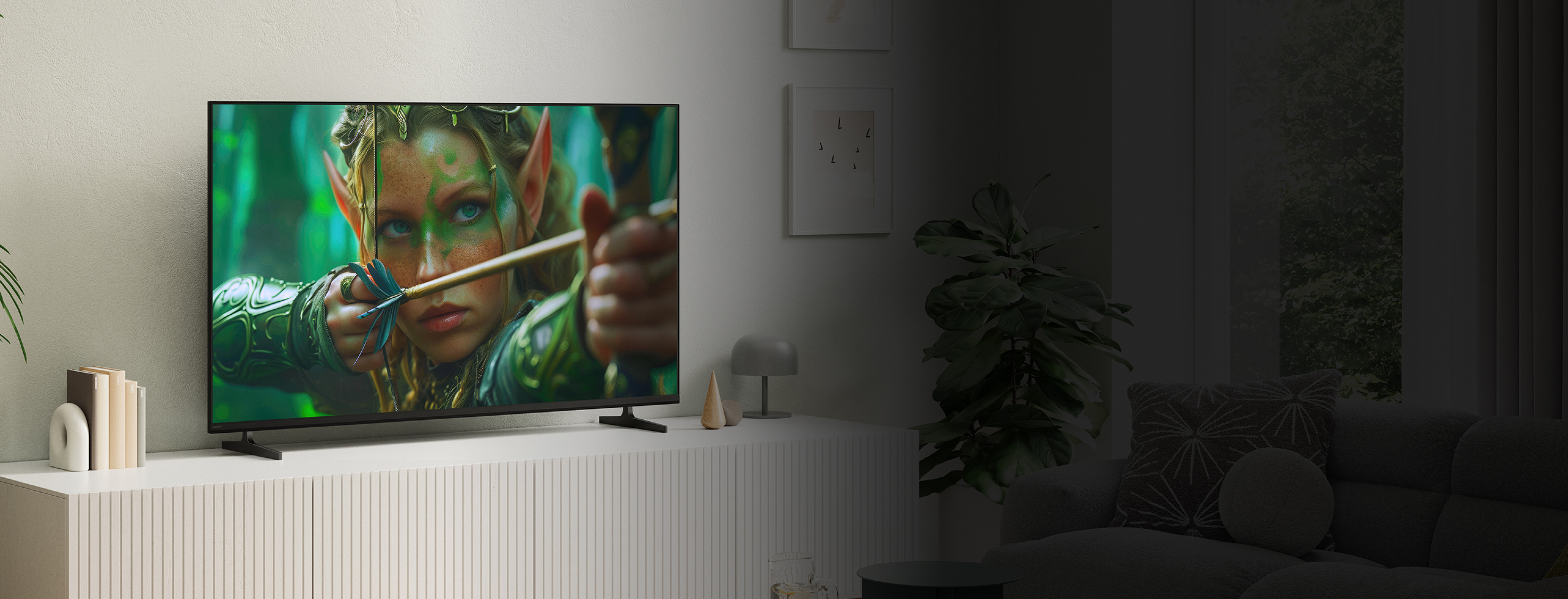
The Sony BRAVIA 2 II is the most affordable 4K TV in Sony's 2025 lineup, and on paper it looks simple: a Direct LED panel, Google TV, four HDMI ports and Sony's 4K Processor X1. But the best Sony BRAVIA 2 II hidden features are switched off by default, tucked inside menus, or only kick in when the right device is connected.
This guide walks through five of them, explains when each one actually helps, and is upfront about what this budget set can't do — so you know exactly what you're getting.
Quick take: The BRAVIA 2 II is a solid, easy-to-live-with TV for streaming, broadcast and casual PS5 gaming. It is not a high-refresh gaming display — it's a 60Hz panel with HDMI 2.0 ports and no VRR.
BRAVIA 2 II at a glance
| Spec | Sony BRAVIA 2 II |
|---|---|
| Sizes | 43", 50", 55", 65", 75" |
| Panel | 4K Direct LED (no local dimming) |
| Refresh rate | 60Hz native |
| Processor | 4K Processor X1 with 4K X-Reality PRO upscaling |
| HDR formats | HDR10, HLG (no Dolby Vision) |
| HDMI | 4 × HDMI 2.0, one with eARC |
| Gaming | ALLM, Auto HDR Tone Mapping & Auto Genre Picture Mode (PS5), Game Menu |
| Not supported | VRR, 4K/120Hz, HDMI 2.1 bandwidth |
| Smart platform | Google TV |
1. PS5 auto-setup: Auto HDR Tone Mapping and Auto Genre Picture Mode
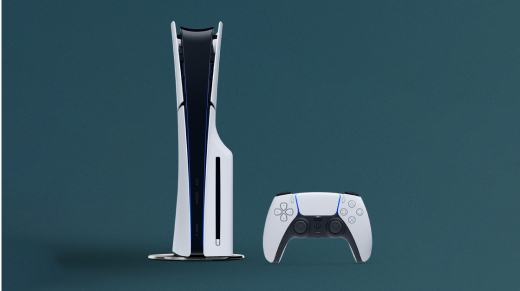
What it is: Two "Perfect for PlayStation 5" features that let a PS5 or PS5 Pro talk directly to the TV.
- Auto HDR Tone Mapping tunes the console's HDR settings to this specific TV during the PS5's initial setup, so highlights and dark shadows keep their detail instead of clipping.
- Auto Genre Picture Mode flips the TV into Game mode when you launch a game, then back to Standard when you open a movie or streaming app.
Why it's easy to miss: Nothing on the TV menu announces it. If you set up your PS5 before connecting it to the BRAVIA, the HDR calibration step won't reflect this TV.
How to get it:
- Connect the PS5 directly to one of the TV's HDMI ports (not through an older receiver).
- Make sure HDMI-CEC (BRAVIA Sync) is on — see feature 4.
- On the PS5, go to Settings → Screen and Video → Video Output → Adjust HDR and re-run it so Auto HDR Tone Mapping can apply.
2. ALLM and the Game Menu: lower lag without hunting through settings
What it is: Auto Low Latency Mode (ALLM) lets any compatible console or PC tell the TV to switch into its low-lag picture mode automatically. The Game Menu puts game-related picture settings and assist features in one quick-access panel.
Why it matters: Game mode strips out the heavy processing that adds input delay. With ALLM, you don't have to remember to toggle it — and you won't accidentally leave it on for movies.
Be realistic about the limits:
- The panel is 60Hz, so games run at up to 4K/60.
- There's no VRR, so you may see some tearing or stutter when a game's frame rate dips.
- Independent testing also found pixel response is slow, so fast motion can look blurry.
That makes the BRAVIA 2 II fine for single-player and casual gaming, but competitive players should look at a 120Hz set instead.
Tip: Leave ALLM enabled on the console side (on Xbox it's under Display & sound → Video modes). The TV handles the rest.
3. HDMI "Enhanced format": the setting that makes external HDR look right
What it is: Each HDMI input has a signal format setting. Out of the box, inputs may be set to Standard format, which limits the bandwidth the TV advertises to connected devices.
Why it matters: If a streaming stick, Blu-ray player or console doesn't see full 4K HDR capability, it may send SDR or a lower-quality signal — the classic "why does HDR look washed out?" problem.
How to enable it:
- Open Settings → Channels & Inputs → External inputs → HDMI signal format.
- Select the HDMI port your device uses and choose Enhanced format.
- Restart the source device so it re-reads the TV's capabilities.
If an older device stops showing a picture afterwards, switch just that port back to Standard.
4. BRAVIA Sync + eARC: one remote, better sound
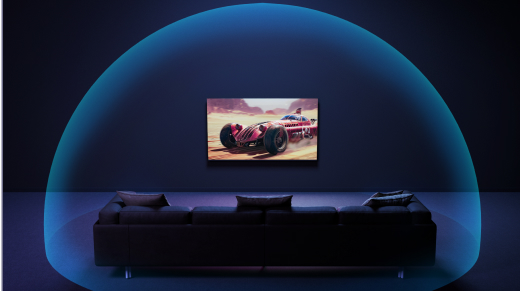
What it is: BRAVIA Sync is Sony's name for HDMI-CEC device control. Paired with the eARC port, the TV can power devices on and off together, switch inputs automatically, and pass high-bitrate audio — including Dolby Atmos — to a compatible soundbar or AV receiver.
Why it matters: The built-in 20W, two-speaker system is fine for everyday TV, but a soundbar is the single biggest upgrade you can make. eARC makes that upgrade seamless.
How to set it up:
- Plug your soundbar or receiver into the HDMI port labelled eARC/ARC.
- Turn on BRAVIA Sync (HDMI-CEC) under Settings → Channels & Inputs → External inputs.
- Under Settings → Display & Sound → Audio output, set eARC mode to Auto and set Digital audio out to Auto/passthrough if your sound system decodes Atmos.
- If a device misbehaves, toggle CEC off and on for the TV and that device — it usually clears handshake glitches.
5. Professional picture mode and motion settings
What it is: Beyond Vivid and Standard, the BRAVIA 2 II offers Cinema, Professional, Graphics and Photo modes, plus white balance, gamma and Motionflow controls under the advanced picture settings.
Why it matters: Vivid mode is designed to stand out in a bright store, not your living room. Switching to Professional or Cinema gives a more natural picture with accurate colour and far less oversharpening. The motion settings let you choose between smoothing (motion interpolation) and a cleaner, more film-like look — and there's black frame insertion for sharper motion if you can tolerate some flicker.
How to tune it:
- Start with Professional for movies and dark-room viewing, or Cinema for a slightly brighter take.
- Turn Motionflow off (or set Smoothness low) for film; raise it for sports if you like the smoother look.
- Leave noise reduction low for good-quality 4K sources — the X1's 4K X-Reality PRO upscaling already cleans up HD content.
- Photograph your settings screens before tweaking, so you can roll back easily.
Pros and cons
Pros
- Affordable way into Sony's picture processing and 4K upscaling
- PS5-exclusive auto settings make console setup painless
- eARC with Dolby Atmos passthrough for an easy soundbar upgrade
- ALLM and a dedicated Game Menu
- Google TV with all the major streaming apps
Cons
- 60Hz panel, HDMI 2.0 only — no VRR or 4K/120Hz
- No local dimming, so contrast is limited in dark scenes
- No Dolby Vision (HDR10 and HLG only)
- Fast motion can look blurry
Buying checklist
Before you buy, run through these questions:
- [ ] Do you game competitively or own a 120Hz-capable console/PC? If yes, skip to a model with HDMI 2.1 and VRR.
- [ ] Do you watch mostly streaming and broadcast TV? This is where the BRAVIA 2 II makes the most sense.
- [ ] Is your room very bright? Without local dimming or high peak brightness, HDR impact is modest.
- [ ] Do you plan to add a soundbar? Make sure it supports eARC to get Dolby Atmos.
- [ ] Do you need Dolby Vision? If your streaming library leans on it, consider a step-up model.
If you need 120Hz gaming and deeper blacks, a step up like the Sony BRAVIA 6 OLED with a 120Hz panel is worth comparing.
Final verdict on the Sony BRAVIA 2 II hidden features
The Sony BRAVIA 2 II won't win any spec-sheet battles, but it rewards a few minutes in the settings menu. Enable Enhanced format on your HDMI inputs, let a PS5 run its auto setup, pair it with an eARC soundbar, and switch to Professional mode — and this entry-level TV delivers a noticeably better picture and sound than its out-of-the-box defaults suggest. Just go in knowing it's a 60Hz everyday TV, not a next-gen gaming display.
Some links in this article are affiliate links — see our affiliate disclosure. Want to know how we pick products? Read more about TwizzyMedia.
Frequently asked questions
Does the Sony BRAVIA 2 II support 120Hz or VRR?
No. The BRAVIA 2 II uses a native 60Hz panel with HDMI 2.0 ports, so it tops out at 4K at 60Hz and does not support Variable Refresh Rate. It does support ALLM, which switches the TV into its low-lag game mode automatically.
Does the BRAVIA 2 II have eARC?
Yes. One of its four HDMI inputs supports eARC, so you can send Dolby Atmos and other high-bitrate audio to a compatible soundbar or AV receiver.
Does the BRAVIA 2 II support Dolby Vision?
No. It supports HDR10 and HLG. Dolby Vision content plays back in HDR10 instead.
What sizes does the BRAVIA 2 II come in?
43, 50, 55, 65 and 75 inches (models K-43S20M2 through K-75S20M2; some regions sell it as the S25M2).
Why does HDR from my console or streaming stick look washed out?
The HDMI input is probably still on Standard format. Switch that input's HDMI signal format to Enhanced format in the External inputs settings so the TV can accept full 4K HDR signals.